
The key to a limitless mind is already in your mind.
On this blog, we provide the mindset tools, affirmations, and wisdom to help you turn that key.
Explore Articles
071: How to Remove Date From Blog - All Brine Family Templates
There is so much one can do with their Squarespace websites without even going into extra code. This blog and video was inspired by a comment on my YouTube Video for Blog 026 which was about removing the date from blogs in the Hayden and Pacific templates. Here I show you how to do so for all templates in the Brine Family.
There is so much one can do with their Squarespace websites without even going into extra code. This blog and video was inspired by a comment on my YouTube Video for Blog 026 which was about removing the date from blogs in the Hayden and Pacific templates.
How to remove date from blogs in the Brine family templates without code
The short answer is: Go into your Design panel> then Site Styles. Look for all the settings related to Blog. Then under Blog: MetaData, select the primary and secondary options to “None”.
There you go. No code needed. No CSS headache. Of course, this is relevant only for the Brine Family of templates. If you have Hayden or Pacific templates, check out my Blog 026 which shows you what CSS code you need to use and where to paste it.
Is my template in the Brine family of templates?
I will often refer to Brine Family of templates in my videos and blogs. If you want to know whether your template belongs to Brine, look at the chart here and then keep that in mind whenever you are researching for answers. Many bloggers will refer to Brine Family of templates in general so then you will have more answers when searching something on Google or on my blog archive here.
In essence, Brine family of templates is a group of templates that belong together. So anything you can do in one of them, you can do in all of them. This is the template family most favored by my colleagues and web designers in general, because it offers the most optimization possibilities without having to use code. The one big drawback is that it doesn’t allow for a blog sidebar. As you will see on my blog, there is no sidebar as I am using the Rally template (within Brine Family). I am fine with it because it gives my users complete focus on the topic at hand.

You cannot have all the nitty-gritty options that one would otherwise have in the sidebar. My workaround is, I post those things at the bottom of my blogs and then on the main blog page itself, I offer multiple ways to search for content. This works fine for me and I am trusting my website visitors appreciate it too. Helping your readers to focus is quite a nice thing. Focus is good!
Explore in-built options before going for code
In summary: Whenever you want to make a change on your website or are looking for a way to accomplish something visually, your first course of action should be to go into your Design settings and see what possibilities already exist. Squarespace continuously tries to make their web platform as user friendly as possible for DIY’ers (Do-It-Yourself Folks), so they may have already included a way to accomplish exactly what you want within their interface without the need for code. So give that a try before hunting for code.
I hope that this helps you not only to remove the date from your Brine Family template but learn a common practice to adopt in your workflow - see what in-built features already exist inside Squarespace before looking for more complex solutions. Simplicity Rocks!
Your Turn:
What kind of changes are you wanting to make to your website? Chime in, in the comments below. I’d love to hear from you!
~ Sophia
070: 3 Ways to edit your blog on Squarespace
You most likely have a blog on your Squarespace website (if you don’t it’s not too late - start today!). And if you are still editing on the tiny little screen that opens up when you click on edit inside your blog page, you will love today’s quick video. I am showing you three ways to edit your blog and two of them make you feel like you are editing on a word processor.
You most likely have a blog on your Squarespace website (if you don’t it’s not too late - start today!). And if you are still editing on the tiny little screen that opens up when you click on edit inside your blog page, you will love today’s quick video. I am showing you three ways to edit your blog and two of them make you feel like you are editing on a word processor.
Click below to watch the video tutorial
Updating your blog should be quick, easy and fun. If you are used to writing on your word processor in a full-screen mode to remove all distractions, you will love Update Method No. 3.
Update Method No. 1
The first method is to click on “Edit” when you open up your Blog just like the purple arrow is showing you in the image on the right.

It will open up to this box below. It is a tiny frame within which you are now to unleash your creative powers.
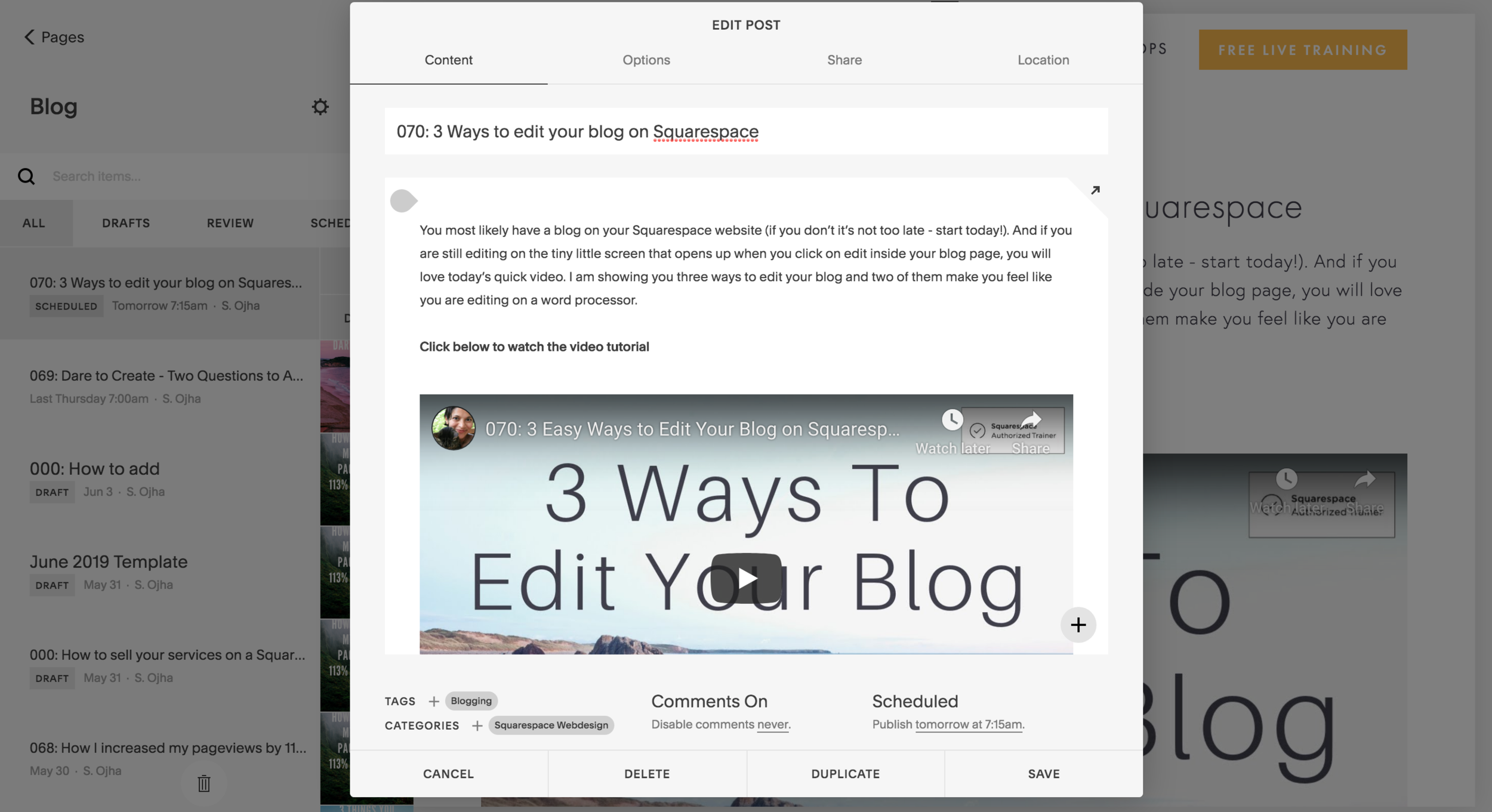
Alas, a small tiny box tends to narrow our vision and I personally find it limiting when it comes to writing my blog articles. So I go on to Update Method No. 2.
Update Method No. 2
In this method, instead of clicking the “Edit” in the left sidebar, you are to click “Edit” that shows up in within the small black box above the blog article itself, just like the purple arrow is pointing to in the screenshot below:

It will open up a bigger box like this:

Now that’s much better. But how about this third method that allows you even more screen freedom? Check out Update Method No. 3.
Update Method No. 3
To arrive at the large screen that I’ve been promising so far, you’ll need to first click on Edit in the sidebar (just like in Update Method No. 1). See the purple arrow below:

Then, it will open the tiny box. You need to now click on the arrow on the upper right corner of the tiny box like you see in the image below.

That will open up the page to a full screen mode where you have the wide open canvas to paint with your words, images, video or a combination thereof. This mode allows for the most flexibility and ease when updating your blog post.


It may look like a small detail but when you want to crunch out lots of quality blogs and articles for your content marketing, then having conducive methods will go a long way.
I hope that this video and blog makes editing your blog fun. When you are having fun, you will be more creative and create more and better things for your audience!
Your Turn:
Tell us what you blog about and here’s my invitation to drop in the URL to your website in the comments! Hey, take this up because - free advertising :-) Chime in, in the comments below. I’d love to hear from you!
~ Sophia
069: Dare to Create - Two Questions to Ask Yourself Before You Create New Content
Creating content consistently is important but the road is filled with challenges. I share a few thoughts from my two years of building my business and creating content and the two questions that guide me when I create a new video or blog.
My biggest lesson was "Show up consistently." For the full story, click to see the rest of my blog + video.
Today, I just wanted to share some thoughts that have been lingering in my mind about online business. And I hope that what I am sharing with you today will help you in your own journey as a self-employed business owner or a freelancer.
Click below to watch video:
I have been running my business since 2016 and it has taken quite a number of twists and turns. I’ve even closed down my business in the middle of this duration because I was burnt out and overworked. I have made some changes over the years and one of the things I have learnt that is so important for growing my business and growing myself as an individual, as a business owner is to keep showing up - to keep PERSISTENTLY showing up. I say that with a lot of love and lot of understanding because I know it is not an easy journey, especially, if you are doing a 9-5 gig and working on your side hustle which is your online business. It is not easy. And on top of that if you have family and community commitments. We fill our lives with so many things to do, sometimes out of choice, sometimes out of the fear of missing out and sometimes that’s just the responsibilities and obligations that our lives contain. What I want to say with that is that I do understand that it is not easy to keep showing up. In fact, it is a road filled with challenges. If you can keep the goal, why you are doing the things you are doing in your business - may be you want to pay off your mortgage, or you want some extra cash to pay off your debt, may be you want to build your retirement savings. Perhaps you want to be free from a 9 to 5 commitment and travel the world. Or even stay wherever you are but not have to commute to work - just roll out of bed and start working or a combination of all of these. Whatever your goals are, identify them and keep them in mind. And then find a way to commit to showing up.
One of the areas where we need to show up is in content creation. This is quite a controversial topic because a lot of people out there including digital marketers will advise you to do ads and speed up the process of building your site/business. And I am not against that at all. But I do believe that you need to create content that shows your authority, your expertise, and your skills. You need to create content even if you believe that you are not yet a master of the topic you are teaching. No matter what you are teaching, if you know how to do it, there will always be somebody else who is still learning. You are always a few steps ahead of someone who is trying to learn something that you’ve already accomplished. So, just show up and lend a hand to the other person who is right behind you, even if you are just a few steps ahead you can reach back and lend your hand. Apply that in the topic of your expertise of what you want to share and teach.
One of the ways we fail to show up is because of fear. The fear can be of so many colors and so many variations. It could be the fear of showing up on camera because you are concerned about how you are going to look and how you are going to be perceived by your audience. You may not like how you like. You may not like how you sound. You may not be confident in your public speaking skills. You may be overly critical of yourself. That is all part of being human. You will learn just by doing that you start to love and appreciate yourself more.
My first video I made about eight years ago was pathetic! I look back and see that there was no creativity. It was my first attempt at making a video for YouTube. But I appreciate myself for doing that, for taking that first step, no matter how I novice I was at the time. It has helped me to grow. It has helped me to take my first step and start a long journey which I’ve now come far ahead now from where I started. Each time I made a new video, I appreciated myself more, I appreciated myself for making the effort and for daring to create, daring to speak, daring to show up and daring to present myself to the world. It’s not an easy process as you may understand, as you may recognize yourself. At some point, you may have felt that too. It’s challenging to pick up your pen and write something or to type something on the computer and put yourself out there. But it is absolutely important. And I’ll tell you why.
Why is creating content important?
The first reason is, as you create content whether it is an article or a video, you are going to learn what you already know. You are going to feel more confident in yourself. You will have a portfolio of content created over time. It builds up so quickly, one article at a time, one video at a time, one podcast at a time. You will see that you’ve created a body of work that you will look back and feel proud of, feel content with, feel a sense of fulfillment. No amount of money is going to give you that fulfillment that a sense of looking at your work and seeing how you have progressed, how you’ve become better, how you have helped other people, will give you. That gives me a great sense of fulfillment.
Another reason you need to build your content portfolio is for that potential client, that potential customer out there who is looking for your services, who is looking for a course you’ve created. But they’ve just run into you. They have just found you on the web - just scrolling. Google show your site and now they are on your site. They are very close to hiring you, or very close to purchasing from you or even subscribing to your newsletter. But they want to know who you are. They want to know do you know what you are talking about. Do you have the skills, the expertise, the knowledge? Are you the person that’s going to help them move from point A to point B. And for that your portfolio of content will be testament to your skills and expertise. They will read a few of your blogs, they will watch a few of your videos. They will get a gut instinct, a feeling in their stomach or in their heart, a sixth sense that says, “Yes, you are the right person and I am gonna go with you”.
This happens over time, of course. It will not happen with one or two blogs and videos.. You need to persistently show up and create that content. It’s not easy. It’s not easy at all to constantly come up with ideas. But if you can think from the point of view of the person you are creating this content for. Just think of one person - a friend or a colleague. It could be somebody you think could benefit from what you are creating. Just think, what is the problem that I can solve for them. What do I know that I can share that can help another. I have these two questions on my board, every single day. It always stays there. It says, “Who can I help today? and How can I help someone today?”.
If you can think about these two questions, ideas will start flowing. You will be inspired and you will start writing an article. You will start creating a video. Sometimes the content that you create will be a help to your own future self. For me, two weeks, two months or two years down the road, I will look back and I will be inspired by the words I say today. Because there will be moments when I am confused, when I am not sure of myself or doubt my work or wondering what should I talk about. I will look at this video and I will be reminded taht I only need to think about: Who can I help today and How can I help someone today? That’s it.
No need to worry about whether my subscriber is brand new to the topic or they are advanced and whether I am going to lose them because I talk about a topic that do not connect with. Don’t worry about it. I say that because I myself have faced these kind of thoughts. My list, the people on my email list are a variety of creatives, a variety of entrepreneurs, some of whome are brand new while some have made more progress and some are pretty advanced. Different content I create speaks to different people on my list. Sometimes I run into this question myself: If I create this video on this topic, am I going to alienate the beginners or am I going to push away the advanced people? And what happens is that I become paralyzed and I don’t create anythin at all for a while because I am figuring out how to please everyone and how to serve everyone. In fact, that’s just serving no one. When I am not creating content I am not helping the beginners, nor those in the middle nor those more advanced because there is no content to look at. This kind of thinking is just a form of doubt, a form of sabotage that comes on your journey as you build your online business. This is just one example. There are different kinds of questions and doubts that will appear and create a roadblock on your progress. So what is important is to recognize them and to move through them. Keep going, keep showing up and stay close to your purpose, your why, the reason why you have set up this whole online business in the first place.
Once you stay current with that, stay familiar with that why, that purpose, then ideas start flowing and you are filled with more energy and motivation to do the job you said you wanted to do. So I want to encourage you to continuously create content, to show up and help the people that are coming to your website or your blog. Help them with something that you know that can be of assistance to them, that can take them forward on their journey.
With that, I wish you all the best. Thank you so much for watching, come back to my blog again and subscribe to my newsletter to keep up-to-date, if you like. Over all, dare to create - that’s going to take you a long, long way.

My biggest lesson ⎯ Keep Showing Up Consistently
In summary: Creating content is not easy but vital for many reasons. Keep showing up consistently and you will grow your business by serving your audience.
Your Turn:
What do you think of the message in this blog article? What kind of mind set challenges have you faced or overcome. What kind of content do you create - blog, video, podcast or a combo. Chime in, in the comments below. I’d love to hear from you!
~ Sophia
068: How I increased my pageviews by 113% in 5 months
Creating content for your readers is an important part of growing your business and website traffic. That's something I learned first hand this year after analyzing my website stats (statistics).
In this blog, I share with you the exact numbers from my Analytics panel (yes, screenshots are included) and the exact steps that I took to achieve a 113% increase in pageviews when comparing the first five months of 2018 and 2019.
My biggest lesson was "Publish useful content weekly" and "Look at your own path of progress." For the full story, see the rest of my blog:
Creating content for your readers is an important part of growing your business and website traffic. That's something I learned first hand this year after analyzing my website stats (statistics).
In this blog, I share with you the exact numbers from my Analytics panel (yes, screenshots are included) and the exact steps that I took to achieve a 113% increase in pageviews when comparing the first five months of 2018 and 2019.
My biggest lesson was "Publish useful content weekly" and "Look at your own path of progress." For the full story, see the rest of my blog:
Content creation is a vital marketing tool for your business
In this online era when it seems that every Tom, Dick and Harry looks up things on the internet for every aspect of their lives, it is inevitable that you would want a website for your business or organization. If you have a website with 3 to 5 pages describing your mission, presenting a way to be contacted and other general information, you are way ahead of the curve already. According to a survey conducted by research company, Clutch, a huge percentage of businesses in the United States still do not have a website. With a website, you now have an online presence and a digital business card that can be accessed from anywhere in the world at any time of day or night. Of course, I can help you create a beautiful site in 2 weeks or less.
Unfortunately, simply having a digital business card is no longer sufficient if you want to reach a wider audience, sell your services/products, enroll new members into your programs or fill the donation boxes of your non-profit organization. You need to have a content strategy for your website and regular content that’s periodically updated. I will tell you the benefits of having content on your site in just a second below.
What kind of content are we speaking about?
If you are not already creating content or are hearing this for the first time, you may be wondering, “Sophia, what do you mean by content and where do I start?”
By content, I mean any published material that informs your readers, potential clients, potential new members and any relevant stakeholders about your company or organization. This material can be in various formats including:
+ text articles also called blog posts,
+ videos (either in the form of tutorials, product presentations, interviews, event coverage and other visual content),
+ audio content such as podcasts
+ live webinar style trainings
+ or a combination of the above.
You start with one of these formats that best fits your current goals and business situation. Text articles are the easiest to begin with so if you are starting out make weekly blog articles your first goal. Regardless of what format you use, what is vital is that you create this content on a regular basis.
Your tasks:
1| Pick a content format (example: blog or video)
2| Pick a publishing schedule (example: weekly, biweekly or monthly)
3| Stick to it for 2 years to see results (super important)
The topics covered in your content can focus on a mix of themes that help your reader in some way. Ideas for content topics include:
1. Product/Service presentation/demonstration
2. Informing or educating your audience
3. In-depth studies that present a relevant topic in detail
4. Solve a specific problem (without the need of purchasing anything from your business)
5. Case studies of past clients/projects
6. Interviews with other users of your products or thought-leaders/experts in your industry
Types of content I create for my readers
I tend to create video and blog content on my site. My blog articles that are around 1000 to 4000 words. (The word count on this blog is 2688). My videos (also embedded on my YouTube channel) can be anywhere between 5 to 15 minutes long. Long-form articles have been known to be good for SEO but my aim is not to reach a certain number of words in each post but rather to focus on clearly presenting a certain topic or theme that is helpful to my audience. So as a rule of thumb, write as long or as short as you need in order to clearly and concisely solve a problem for your reader.
You will notice that on my website, I create content that:
1. Shows my readers how to technically use the Squarespace platform for building their website
2. Shows my readers how to leverage their website to build an email list
3. Shows my readers business lessons that I’ve learnt that can inspire them in their own business
4. Educates my readers on website-relevant themes such as SEO for increasing traffic, leveraging their website to save costs and growing their online business.
5. Demonstrates design tips for their online presence using free tools (for example: how to design an email header without Photoshop)
All in all, the aim of my content is to help online entrepreneurs and non-profits leverage their online presence to best serve their readers and clients and as a result to grow their revenue as well as create a positive impact for their communities.
The many side-effects and benefits of creating good content
Creating good content has many benefits, both for your business/organization and your clients or potential clients. It truly is a win-win approach when you make serving your readers the goal of your content, not serving yourself as the goal. I have a list of blog articles ideas that I routinely collect on my product management app, Asana, but when I sit down to write a new blog article or create a new video tutorial, I ask myself, “How can I help my readers today?” Then the right topic emerges. Asking the right question, as they say, is key to finding the right answers. Here are some specific positive side-effects of creating good, helpful content so that my readers and clients can:
1| Experience my teaching style: Potential workshop or course students can have a taste of my teaching style so they know what to expect when they purchase an online course or register for a live workshop.
2| Assess my skills before hiring me: Potential clients can see an archive of past content to assess if I have the skills and knowledge to solve their business/organization problems before they invest their hard-earned money to hire me.
3| Save money: My current clients can save money as they can find solutions through my archive of video tutorials and blog articles that solve their problems. They can follow the step-by-step tutorials and implement themselves or delegate to a VA (virtual assistant) so they can rather reserve their resources to hire me for more customized services. Alternatively, they can feel confident in hiring me to do the same knowing that I an effectively solve their problem.
4| Feel good about working with me: All of this builds the like, trust and know factor and my potential clients see my business as reliable, competent and integral and my current clients want to continue to stay working with me.
And we haven’t even mentioned the major SEO benefits that your content brings to your website, helping your business to be found by more people who need and want what your business/organization offers. Nor have we spoken about how this positively helps to grow your email list.
Create Beneficial, Useful Content
As I mentioned earlier, the more you focus on how you can help your readers/clients, the better it is for your business in the long run. For example, one of my clients hired me to teach her how to add a video to the banner of her website. Then a past workshop student emailed me asking me the same. So I saw that this was a topic that was in much demand, so I decided to create a blog + video on that topic which can be freely accessed by both by my current clients and potential new ones.
Not Richard Branson but I follow his philosophy
Some may ask, “why create content that shows something for free when you actually can be hired for doing the same thing?” My answer is simple. I am clear about my aim in my business and that is to be of service. My aim is to help my client. My client can watch the free video tutorial on YouTube and that helps her. But if my client writes me and says, “Hey Sophia, I saw your video on YouTube on how to add a video banner, can you implement that on my site? I have a million other things I need to take care of”. This has happened in real life where I made an in-depth video showing how to step-by-step achieve something and then one of my past clients emailed me. She wanted to hire me to implement the exact same thing for her business.
So now, I have helped my client by freeing up her time. That’s a very fulfilling feeling. Imagine how awesome it is to free up someone’s time - time that is such a rare and dwindling commodity that we all want more of. What good karma you’ve created for your own self by saving time for another business owner. And my aim to of service has been achieved in both scenarios (free content and being hired). Now, I am no Richard Branson who wrote in a recent article that he didn’t start Virgin to make money, rather to make a positive difference in people lives. But I hope you are following my motivation here clearly because this way of thinking will go a long, long way for your business and your own life.
How I increased my pageviews by 113% in 5 months by creating useful regular content
Seeing real data is the best proof! Creating good, regular content has been vital for an increase in traffic for my website. To give you some real evidence, I want to compare the first five months of 2018 to the first five months of 2019. Right now, we are still in the middle of 2019 so comparing all 12 months of 2018 to the five months of 2019 doesn’t make sense to me. Of course, the period June to December of 2018 had a compounding impact on stats for this year so this analysis is not without incompleteness. But it suffices for the point I am making here ⏤ publishing regularly will positively benefit your traffic.
[Jan 1, 2018 - May 30, 2018] Vs. [Jan 1, 2019 - May 30, 2019]
The screenshot below is from my Squarespace Analytics page where I can see the traffic information for my site for the period of January 1st, 2018 until May 30th, 2018 (the first five months). And then below it, you will see the stats for the same time period in 2019 - Jan 1st till May 30th.
Here are the 2018 stats for the first five months:

And now compare, my 2019 stats for the first five months:

You can see that my site generated:
2018
Jan to May
1,646 Unique Views
2,017 Visits
3,962 Pageviews
2019
Jan to May
3,808 Unique Views
3,914 Visits
8,448 Pageviews
You can check your own website traffic stats by visiting your dashboard and navigating to the Analytics> Traffic panel.
Clearly, all three data points saw an increase. When I calculated the percent increase, I found that my website had landed 113% increase in pageviews for the 5 month period that we are comparing here.
To calculate percentage increase, you first figure out the difference between the old and the new data, then divide the difference by the old number and then multiply by 100.
Unique Visits
3808-1646 = 2162
2162/3808= .567
.567*100 = 56.77
57% increase in Unique Visits
Visits
3914-2017 = 1897
1897/2017= .94
.94*100 = 94
94% increase in Visits
Pageviews
8448-3962 = 4486
4486/3962= 1.13
1.13*100 = 113
113% increase in Pageviews
So you can see that for all three data points, my website generated a double or triple digit increase: 113% increase in Pageviews, 94% increase in visits and 57% increase in Unique Visits.
The simple way to increase traffic to your site: blogging consistently
To try and make some correlation of the increase in my stats with the content I published, I reviewed my Blog Archive to see how much content I published for the same time period (Jan - May) in 2018 and 2019:
2018 Blogs + Videos
4 Blogs from Jan to May
14 total from Jan to Dec
2019 Blogs + Videos
17 Blogs from Jan to May (18 counting this blog post)
? total from Jan to Dec (we are still in May 2019)
Comparing my content creation for 2018 and 2019
So here you see, that for the 2018 time period (Jan-May), I published 4 blog articles and videos whereas in 2019 (Jan-May), I published 17 blogs. That’s 13 more blogs published in the same time period. In fact, that’s more than what I published in the entire year of 2018 (annual total of 14 blogs).
I created four times as much content than the prior year to yield 57% increase in Unique Views. My goal was to create weekly blog + video in 2019 so I should have actually published 21 blogs by May but instead published 17 till now (18 if you count this post which was published on the last Thursday of May). I am still missing 3 posts from my 21 goal and that’s because I missed on content creation in the whole of March and the first part of April due to an unexpected surgery that put me in bed for 4 weeks. Considering all that, I am pretty happy to have 18 published articles this year so far ⏤ a majority of which are long-form articles plus most of them come with a video tutorial. I really gave it my all! :)
Compare yourself with yourself; not with others
Now for some of you these stats may be too little or too big. But that’s irrelevant to me. I have spent far too much time comparing myself to others and it has only pulled me down. The mind wants to compare ourselves with others’ journey but there’s really nothing to compare. We are all on our own unique journeys and although we can be inspired by the success of others and celebrate with them, we mustn’t measure our worth by comparing with others. We need to make our own experiences and learn from them. It is helpful rather to look at the path we have taken and how far we have come. Mistakes are learning lessons and indicators of what we need to change in the future.
The stats I shared with you today are by far not anywhere close to where I want my website traffic stats to be at but what’s important is that I can see how much progress I have made already and have assessed what exactly led to it. Publishing regular content this year has yielded a 113% increase in my Pageviews and that’s a stat worth noting as I continue my content creation plan of action for the rest of the year. Now for me, it is just about following what works and doing it consistently while keeping eyes on my own path.
My biggest lesson ⎯ Publish Useful Content Weekly
In summary: That in a nutshell is my biggest lesson. Focus on helping your readership. Focus on creating useful content. Publish weekly. Look at your own path of progress. I hope you, too, will be inspired by this blog and what I’ve shared today and will begin work on crafting your very own content strategy or redesigning an existing one.
Your Turn:
What do you think of the message in this blog article? Do you have a content strategy? If so, what format do you publish in and what topics do you cover? Chime in, in the comments below. I’d love to hear from you!
~ Sophia
067: Three things you should know about doing a live workshop series
Recently, I conducted a three-part live workshop series (90 minute each) called “Host Your Course”. I enjoyed doing it very much but also learned some important lessons. I’ve decided in which scenarios I would use a live workshop method and in which scenarios I’d rather use the online course method. I share all of that in this blog article to help you in your business when it comes to creating paid information products.
Recently, I conducted a three-part live workshop series (90 minute each) called “Host Your Course”. I enjoyed doing it very much but also learned some important lessons. I’ve decided in which scenarios I would use a live workshop method and in which scenarios I’d rather use the online course method. I share all of that in this blog article to help you in your business when it comes to creating paid information products.
Three Lessons I learnt from doing a live workshop series
I will break down my top 3 lessons for you but before I dive into it, a word on why I chose a live workshop method.
Four Types of Online Teaching Methods
When it comes to creating a paid information product online that teaches something to your students, you have a multitude of options:
1. You can create an ebook/PDF
2. You can create an audio course
3. You can create an online course that includes video, audio and PDFs
Or:
4. You can do a live online workshop
The Live Workshop Method (and why I like it)
The Live workshop method entails setting up a workshop online using one of the many conferencing platforms such as GoToWebinar, Crowdcast or Zoom which is my preference). These are affiliate links.
You set up a live session, send over the video call link to your students via email or place it on a course home and then, at the set date and time, you do the live training. My live workshops include both a slide presentation as well as a live demo on the Squarespace platform. I love Zoom because it allows me to record the presentation with ease and do screenshares without going into a crazy picture in picture mode (like it happened to me when using Crowdcast). Zoom also saves me a copy of the chat interaction so after the workshop is over I have the chance to review any questions or comments from my students.
Good for the instructor: I really enjoy the live workshop method because I get instant feedback from my students while I am teaching something. I get to learn at what parts during the workshop a question came up for my students. This way I can improve my presentation, clarify the message or demonstrate the skill better. It is a great learning tool for me as an instructor to refine my material and teaching style by listening to my students’ questions and needs during the workshop.
Good for the student: This style is enjoyed by the students for the instant feedback aspect as well. They join the session live from anywhere in the world as long as they have good internet access and they can ask questions via video (optional) or in the chat box. While I am showing something on the backend of my Squarespace site or a demo site, they can ask a question to clarify something and right away get the answer instead of having to move through the material with lingering questions in their mind.
This method has worked very well for my 90-minute interactive live workshop, Squarespace Fundamentals which I have been holding several times a month since May of 2018. So I decided to use the same method for my 3 part live workshop series Host Your Course as well. And here’s what I found:
The obstacles I ran into when hosting three live sessions of Host Your Course
Because I enjoy the live interactive format as the instructor for Squarespace Fundamentals, I decided to use it for my larger training Host Your Course as well. It was a good thing that I gave the live workshop method a try but when I launch this course again, it will be in a different format (I explain why below).
When I held the three-part live workshop series, I ran into these obstacles:
Obstacle #1 The microphone (despite being a brand new one) had a glitch that showed up only in the recording. The audio kept repeating certain phrases during the entire training which doesn’t make for a good user experience. I couldn’t fix this as I found out only after the session was over. I have to go back and redo the entire session for my students so they can have a good recording to watch later on.
Obstacle #2 Because the live trainings happen on a specific date and time, any emergencies or calendar conflict would derail the workshop. In my case, I had double booked on the third and final session. I had to pre-pone the workshop but that means if students can’t make the new date, it’s not fair to them as they committed to the date I had initially announced. I learned from this experience that doing live sessions demands a lot from me and if there’s any emergency or a scheduling conflict, I will run into further issues.
Obstacle #3 I ran out of time in one of my 90 minute session while didn’t have enough material to fit one of the other 90 minute sessions. Because I was doing this three-part live workshop by following a theme, I divided up the three sessions by topic, not realizing that in practice, demonstrating the first part would take more than 90 minutes. On the other hand, one topic took up only 30 minutes. So this was out of proportion and not quite a smooth process as I’d like to have. Of course, I could have planned this better and done some test runs to find out I had only 30 minutes of content but I didn’t do it and now I learn from it.
3 Learning lessons from the live workshop series method experience
So although the live workshop method is great for a one-off 90 minute training like Squarespace Fundamentals, it doesn’t work for a longer training like Host Your Course that is spread over three weeks as it didn’t allow me room for fixing tech issues, for dealing with life and business emergencies or errors (like double booking), and for harmonizing the amount of content that can be taught in each session. The online course method (with pre-recorded content) is what I’ve decided to go with when I launch Host Your Course next time.
The Online Course method is great because:
1. Tech problems can be fixed easily: If a microphone fails or I run into other tech issues, I can simply go back and fix it. When the content is pre-recorded I can check the tech with great fluidity and correct any issues, before the content goes live. This is much better user-experience and better for the learning experience for my students.
2. It’s more forgiving when running into emergencies or scheduling conflict: If I have to take care of something out of the blue one afternoon while preparing the recorded materials, I can easily move my schedule into the evening or the next day. This is not something I can do when I have a pre-determined time and date for a live workshop. Doing an online course with content that’s pre-recorded gives the most flexibility when you also have other responsibilities that suddenly want your full attention (parents with little kids know this well).
3. It allows for better content planning: When I have the content recorded, I can have as many lessons as needed within each module to cover the points I want to cover. If one module has 3 lessons and another has 5, it’s not an issue at all. The content is still arranged by topic and has greater cohesiveness than what I experienced in a live workshop mode where one session had only 30 minutes of content, for example.
My biggest lesson ⎯ Be kind to yourself
In summary: I hope that when you think of turning your knowledge and skills into a paid information product, you will consider my experience in hosting live workshop series. The live format is great of a one-off 90 minute trainings but an online course with recorded material works well for a more in-depth training.
In the end, it’s important to try things out, reflect and learn from it and give yourself a break. Don’t be too hard on yourself when things don’t go smoothly or as planned - that’s life and all we can do is be kind to ourselves, learn from our experience and give it another shot. :-)
Your Turn:
Chime in your thoughts in the comments on what approach you’ve used and what you will consider for your next online information product. I’d love to hear from you!
066: How to find and fix broken links on your website
One of the ways you can improve the user-experience and ranking of your site is by fixing broken links. In this blog, I will share what are broken links, why they are bad for your website/business, how to find them and how to fix them.
One of the ways you can improve the user-experience and ranking of your site is by fixing broken links. In this blog, I will share what are broken links, why they are bad for your website/business, how to find them and how to fix them.
How to find and fix broken links on your website?
What are broken links and how do they happen?
Broken links are links on your website that lead to a ‘404 error’ page or do a ‘page not found’ page. Essentially, that means when someone click on a link it leads to a dead end. That’s why they are also called “dead links”. There are several “innocent” reasons for broken links:
1. It may be that there was simply a typo and a link was typed in incorrectly.
2. It may be that the external website that was linked to, is not longer active.
3. A program or an event that your organization once hosted, is not in offer anymore.
4. It may be that a domain name is no longer in use or was changed.
In fact, there’s been research done that leads to the conclusion that about every seven years, your website is prone to lose 25% of its links. This is called a “link rot” and there’s a natural tendency of sites to do this according to Maciej Cegłowski.
Types of Broken Link Error Codes:
400 Bad Request
401 Unauthorized
403 Forbidden
404 Not Found

Why are broken links so bad?
There are two reasons why broken links are not so good for your website.
1. Broken links hurt your SEO rankings.
Your website ranks higher in search engine results such as Google or Bing when it’s considered to a healthy, value-giving website. One of the factors that contribute to your search ranking is whether all links lead to where they promise to lead you. When you click on a link and it goes to an error page, you hurt your SEO (Search Engine Optimization) and that’s clearly not a good thing for your website.
2. Broken links give a poor user-experience to your site visitor.
Another way broken links hurt your website is by giving a poor user-experience to your site visitors. If someone looking for something on your site clicks a link that yields nothing a broken link, it not only affects how professional your site is perceived by the visitor but it ultimately wastes their time and they may immediately jump off your site. Thankfully, this is something you can fix either by investing your own time or hiring a professional to fix. (Hint Hint: You can hire me by the hour to clean up the broken links on your site).
What can you do to fix broken links?
The way to fix broken links is to find them and correct them periodically. You can use free or paid tools. Here are some free tools to get you started:
1. Dead Link Checker: https://www.deadlinkchecker.com
2. Broken Link Finder: https://brokenlinkfinder.com/
3. Dr. Link Check: https://www.drlinkcheck.com
4. Broken Link Check: https://www.brokenlinkcheck.com/
5. Also check out this Ukrainian link checker tool: https://sitechecker.pro/broken-links/
I recommend using all four of these (free) tools. Last week, I used one of them and cleaned up all my broken links. I came back to write the blog and plugged in my domain name into the remaining three and still found some new broken links.
So I hope that this article is helpful to you and you will go and test out your website for broken links. I’d love to know about your experience so chime in the comments if you found any of the above links helpful.
065: Why you should batch process everything you can in your business
One of the best things I learnt about running a business is the importance of creating good content for my audience. It is a powerful way to make a connection with exactly those people who are looking for solutions that your content can help solve. Email makes if possible to keep your business “top of mind” for your readers/clients.
The other best thing I’ve learnt is to organize and streamline my business activities using batch processing. This can be done very easily using automation tools that are already in place. Case in point: scheduling out emails in advance.
One of the best things I learnt about running a business is the importance of creating good content for my audience. It is a powerful way to make a connection with exactly those people who are looking for solutions that your content can help solve. Email makes if possible to keep your business “top of mind” for your readers/clients.
The other best thing I’ve learnt is to organize and streamline my business activities using batch processing. This can be done very easily using automation tools that are already in place. Case in point: scheduling out emails in advance.
The many benefits of batch processing
There are many benefits to batch processing your activities in your business. Let’s take the example of batch processing your weekly emails to your lost:
|1 Frees up your time
You can easily free up your time when you schedule out your emails in advance. If you are sending emails four times a month, but you write and schedule them out in one sitting, that saves you at least 4 times of opening your email marketing platform, going to the right section and creating a new email. If you are not using that email platform everyday, you have to re-acquaint yourself with the system each time. Rather, re-acquaint yourself once a month and then write it all up at one go.
|2 Take advantage of flow
You may have heard about the state of flow - the mental state of mind that happens when you are in your zone of genius. Well, this flow also happens when one is getting into the groove of a particular project. For example, when I start writing, at first I may be at a loss of how to begin. But once I begin writing, more ideas come and I have not only completed that one blog post, but I am already writing the next one. This same magic can happen during your email writing session. This way you simply get a lot done faster and get it done in a state of flow instead of in a state of fighting writer’s block four times a month (4 times in the scenario when you are sending out one email a week and writing them individually each week).
|3 It helps you feel a sense of accomplishment
At least, that is what it does for me. When I have 4 emails and 4 blog posts all ready to go a month in advance, I feel so good about my productivity and creative output. It allows me to then go on and create more content or focus on another project without interruption. This is a feeling I think every solopreneur/business owner should have a taste of - the feeling of “being ahead” of one’s to-do list. I love that feeling and batch processing gives me that.
|4 It allows you to put out content consistently even if you face a difficulty
This one is personal. Just last month, I realized how important it is to have video + blog content along with the weekly newsletters scheduled out. You see, I faced an unexpected hospital visit and I had to undergo surgery. The recovery process took a full three weeks when I could not do anything in or for my business. Plus the fourth week after the surgery when I slowly came back to my desk, I felt so exhausted that I didn’t get a lot accomplished. It was only in the fifth week that I got back on my feet fully.
Thankfully, back in February, I had created 4 videos , 4 blog posts and 4 emails, all of which I had scheduled out for March. This way, in March when the unexpected hospital visit and surgery came, I could completely focus on my rest and recovery. Boy, was that a relief to have everything scheduled out.
I only missed on sending out content the week when I came back to work. But you know what, given my health circumstances, I can live with that. And I know my audience is kind and compassionate enough to not mind me missing out on one week’s worth of content. After all, I have over 60 videos and blog posts on my website that they can still go and make use of.
This 4th point is probably the most important benefit. And it doesn’t have to be health issue. What if you wanted to take August completely off or December completely off from your business. Well, you can still build up SEO points and heart-points with your audience by sending them useful content that you schedule out for them in advance.
How to Batch Process?
There are several ways you can go about this.
1. Pick a day for a specific task:
One of my fellow web designer based out in Canada, uses a weekly system. For her, Mondays are content creation days. You can do this too. Plan to do a specific task on a specific day of the week each week. This also helps create a nice timetable for you to follow so you know what you are doing each day of the week. This does require some good planning and you will surely, need to try it out and adjust it to how you work.
2. Follow a workflow:
What I like to do is use a workflow that works best for my style of working. For example, my workflow is a synergized plan that includes video content creation, blog article creation and newsletter creation. Depending on the topic of my blog, I first either shoot the video or write out the step-by-step plan. Sometimes I like to write out the article so I know what to do in the video. At other times, it is easier for me to show the steps in a video and then I write it out as a blog.
I like the second method because it allows me to start a workflow whenever I like. I can do this before or after a client project and this way I have a bit more flexibility to accommodate my clients when it comes to matching our schedules for video call consultations. I can also break up the workflow in part 1 and part 2 and still have the “batch process” effect. I’ve tweaked this process as it fits my working style and my business over the last 2 and a half years. I recommend you giving it a try and as you do it, you will find out what works best for you.
So the workflow method works for me. Do what works for you but batch process.
Are you getting excited to get your own website? I love designing websites for fabulous people like yourself, so take action to get your website design process started —> Start the Conversation by sharing some ideas about your site with me.
Questions about this blog post? You can drop them in the comments below!
~Peace,
Sophia
064: How to tweak the design of your Mailchimp opt-in form on your Squarespace website?
In this video and blog article, you will see how to make your opt-in form a little more pretty. Change colors of the form or make it completely transparent. You will do this all without any code. All you need is to follow the steps and play around with your settings under Design> Site Styles.
In the last video, you saw a demo of how to embed a Mailchimp opt-in form to collect emails on your Squarespace website. This is an important aspect of your website, so make sure you set up an email marketing system in your business.
Al’right, in this video, you will see how to make your opt-in form a little more pretty. Change colors of the form or make it completely transparent. You will do this all without any code. All you need is to follow the steps and play around with your settings under Design> Site Styles.
Watch the step-by-step video showing you how to do this yourself:
How to tweak the design of your Mailchimp Newsletter Opt-in Form
The video above goes into much greater details but here’s a quick step-by-step checklist for on how to tweak the design of your opt-in form.
|1 Go to Design > Site Styles
|2 Hover over the Newsletter on the right Content Area
|3 You will see the Newsletter Block options in the left panel
|4 Click on Background Color and change it to a color that matches/contrasts with your brand colors
|5 Next change the Alternate Background Color as well to have the same color as in Background Color
|6 Click on Button Color to change it
|7 Click on Alternate Button Color and change it there as well
|8 Under Button> Style Outline to choose Solid, Outline or Raised for the button style
|9 Under Button> Shape to choose Square, Rounded or Pill.
|10 Alternate look: Click on Background Color again and move the lowest circle to the left to make the box disappear or look transparent.
Learn How to Build Your Website on Squarespace:

Well, my friend, I hope you found this blog and tutorial useful. Let me know in the comments if you have questions on this or any other questions about email marketing or about building your website on Squarespace.
Are you getting excited to get your own website? I love designing websites for fabulous people like yourself, so take action to get your website design process started —> Start the Conversation by sharing some ideas about your site with me.
Questions about this blog post? You can drop them in the comments below!
~Peace,
Sophia
Stopping the freight train of the mind
It is not always easy to meditate in daily life. There are responsibilities and commitments that are so time-consuming.
But when there is a group of like-minded people who all want to train their minds in a conducive environment together, that's a golden opportunity. So finding a group locally in your area to meditate with is very helpful for your practice. Meditating together helps us water the good seeds within us - that's because your presence in the circle helps each one of us feel a sense of community and belonging, something we all yearn for.
If you cannot make it to a group meditation due to other commitments and reasons, or there isn't a group nearby, do take time to refine your practice, nevertheless. Use a guided meditation from YouTube or sit quietly in your room and gently bring awareness to your breath for 10 minutes.
These 10 minutes will go a long way, especially when done every day. And it is not about having the perfect 10 minutes - that's too heavy of an expectation for our practice. The only thing to do is - Show Up to our meditation practice. Even if those 10 minutes are full of a wandering mind, so be it. At least you showed up and made a meaningful effort to calm the mind.
This reminds me of a story I heard one of the monks relay. There was a man who got a job and he showed up on Monday for work. At the end of the day, he returned home to his wife and complained that he didn't get paid and was thinking of not going to work the next day. On Tuesday, he did go to work but came home empty-handed. The next day, he did a whole day's of work yet no paycheck. He told his wife that he still didn't get renumerated for his hard work and was thinking of quitting. On Friday, he managed to bring himself to work and put in an honest effort.
As he was leaving, he was stopped by his boss. She gave him his paycheck! Delighted, the man went home happy to his wife.
Sometimes, we too, think of our meditation like this man. On day one we want a calm, peaceful mind and go into deep meditative states. Each day we think - ah, it's not bringing me any results, why meditate? But it is only after repetitive training of the mind that it learns to quiet down. How quickly it calms down has at least something to do with how long and how fast it has been running around all those years. Just like bringing a bicycle to a complete stop is far easier than bringing a freight train to a stop, bringing a mind habituated to wandering takes longer to slow down than a mind that has been practicing for a while.
Eventually, one day you will experience peace and serenity and delight of the mind that surpasses all other worldly pleasures and comforts. So let's help ourselves now by training our minds slowly and gradually.
Much love,
Sophia
063: How to embed an Mailchimp opt-in form on your Squarespace website?
To make the most of your website, it is important to collect emails and build your list. This not only allows you to continue the conversation with your site visitors who now become your email list members, but also enables you to build trust and continue to offer your services, offers, products and other free and useful content such as videos, workshops and live trainings. In this video + blog article, I show you just how to do that.
To make the most of your website, it is important to collect emails and build your list. This not only allows you to continue the conversation with your site visitors who now become your email list members, but also enables you to build trust and continue to offer your services, offers, products and other free and useful content such as videos, workshops and live trainings.
But if you do not have an opt-in form embedded on your site, you cannot collect emails of your site visitors who are interested in hearing more from you. Today, I show you how you can embed an email opt-in form using Mailchimp, a useful email marketing platform free upt o 2000 subscribers. Note that you do have to open an account with Mailchimp and set up your list/audience settings first before doing this step on your website.
Other email marketing platforms that are good alternatives to Mailchimp are ConvertKit and MailerLite. (Affiliate Links). I have used all three and found each platform appropriate for very different needs. If you are a new blogger or online entrepreneur or an artist just building your email list, go with Mailchimp or MailerLite which both have free entry points upto a certain number of subscribers. If you are at an advanced stage or plan to immediately implement complex workflows and email sequences, then ConvertKit and MailerLite are better options.
So now here’s how you can connect the opt-in from on your Squarespace website.
Note: You can customize the design of the Newsletter form under Design > Site Styles. This video and checklist in blog post 64 hows you how to do that.
Watch the step-by-step video showing you how to do this yourself:
How to Embed a Mailchimp opt-in form on your Squarespace Website?
Watch the video above to see all the details but here’s a quick step-by-step checklist for embedding a Mailchimp Form.
|1 Create a New Page by Clicking +
|2 Select Blank and Name it
|3 Click the Wheel Icon
|4 Go to Media
|5 Upload Image and Click Save
|6 Click on Edit
|7 Click on the Sideways Teardrop Icon
|8 Look for Newsletter Block under More
|9 Give the Form a Name
|10 Customize Title and Description and Alignment
|11 Click Storage
|12 Click “Connect other services” link
|13 Mailchimp opens up. Click on it and Connect with Mailchimp
|14 Select the correct list/audience in the drop-down menu
|15 Click “Require double opt-in after subscribing”
|16 Under Advance customize Submit Button Label and Post-Submit Message
|17 Click on Apply. Click Save.
|18 That’s it.
Note: You can customize the design of the Newsletter form under Design > Site Styles. This video and checklist in blog post 64 hows you how to do that.
Learn How to Build Your Website on Squarespace:

Well, my friend, I hope you found this blog and tutorial useful. Let me know in the comments if you have questions on this or any other questions about email marketing or about building your website on Squarespace.
Are you getting excited to get your own website? I love designing websites for fabulous people like yourself, so take action to get your website design process started —> Start the Conversation by sharing some ideas about your site with me.
Questions about this blog post? You can drop them in the comments below!
~Peace,
Sophia
Turbo-Charge Your Email Marketing with Evergreen Lead Magnets (within an afternoon)
Get Instant Access | 45 Min Video Training with ConvertKit Walkthrough
In this presentation, I walk you through 7 different evergreen lead magnets/freebies that you can set up on your website to grow your email list. I also give you 10 real life examples of lead magnets from various online entrepreneurs and show you how to set up an opt-in using ConvertKit + Squarespace. Get instant access to view this training by clicking the button below and signing up.

061: How to Add Video Clip in the Banner?
Demonstrating a message with moving images rather than just text is a powerful way to set the tone for your site. Adding a video clip to your website’s banner is one way to do that. It creates a certain mood for that specific page and it is easy to set up as you will see in this 3 min video.
How to Add A Video Clip in the Banner of Your Squarespace Website
Demonstrating a message with moving images rather than just text is a powerful way to set the tone for your site. Adding a video clip to your website’s banner is one way to do that. It creates a certain mood for that specific page and it is easy to set up as you will see in this 3 min video:
1| Create the Page You want the Video Banner on
Or if the page is already created, jump to step 2.
2| Click on the Wheel for the Page Settings
This is the icon next to the page name you see in the Pages Panel

3| Jump over to Media
Copy the url of the video you want to play and paste it there. Click save and check how it looks. If it appears narrow like a thin bar, then go into Edit and add a spacer to lengthen the banner. Check the video to where you can visually see how I do this.

Show us what you’ve created!
That’s it, my dear friend! It really is as easy as 1-2-3! I love seeing what you create so hop on down to the comments and show me what you’ve created!
Your Brand New Website!
Are you getting excited to get your own website? I love designing websites for fabulous people like yourself, so take action to get your website design process started —> Start the Conversation by sharing some ideas about your site with me and get a free 15 minute video consultation to discuss your website dreams.
Questions about this blog post? You can drop them in the comments below!
~Peace,
Sophia
Learn How to Build Your Website on Squarespace:


060: Why is the Cart Icon Not Showing up in My Top Navigation?
After I design a website, my clients can still work with me by hiring me on an hourly basis. This blog+video is a direct result of a request my client had after I completed her site. I had created an e-commerce site for her that had a shop with multiple products. My client wanted to have the cart icon show up for her. But she found that to be not a simple click and activate situation. There was one more step to take care of.
If you are using any of the Brine Family of templates and have a product page but your cart icon is not showing up in Design and then Site Styles, then follow the simple step in this video to resolve it.
Why is the Cart Icon Not Showing up in My Top Navigation?
After I design a website, my clients can still work with me by hiring me on an hourly basis. This blog+video is a direct result of a request my client had after I completed her site. I had created an e-commerce site for her that had a shop with multiple products. My client wanted to have the cart icon show up for her. But she found that to be not a simple click and activate situation. There was one more step to take care of.
If you are using any of the Brine Family of templates and have a product page but your cart icon is not showing up in Design and then Site Styles, then follow the simple step in this video to resolve it.
1| Go to Commerce > Checkout
Uncheck “Express Checkout”.
2| Refresh page
You should now see the cart icon show up a) either in the navigation bar or b) as an option under Design> Site Styles> Header: Layout
3| Customize the icon or text
Change the color, size or type of icon as you like.

1| Go to your panel Commerce > Express Checkout. Then uncheck this option.
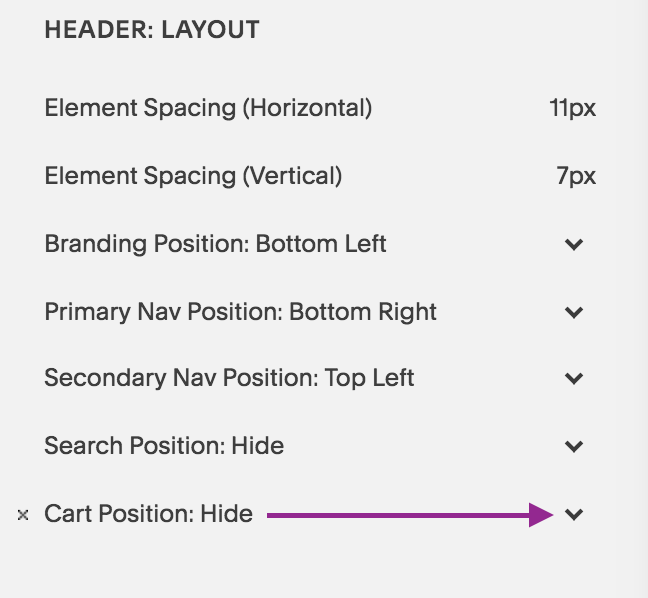
2| b) Click the drop down arrow and change from “Hide” to a position, for example “Top Right”.
Show us what you’ve created!
Again an easy 1-2-3 video. Let me know if you have other questions about this tutorial and I’d be happy to help!
Your Brand New Website!
Are you getting excited to get your own website? I love designing websites for fabulous people like yourself, so take action to get your website design process started —> Start the Conversation by sharing some ideas about your site with me and get a free 15 minute video consultation to discuss your website dreams.
Questions about this blog post? You can drop them in the comments below!
~Peace,
Sophia
I realized the power of meditation when I experienced intense pain
Last week, I had to undergo an unexpected surgery. An intense pain developed over the weekend which sent me straight to the Urgent Care who sent me to see a surgeon. The reason I am telling you this is because it happened just before my March 27th presentation which is all about navigating pain through meditation.
Now, I felt that I was fit to talk about this subject because I used to have extremely debilitating menstrual cramps for years before I began using meditative techniques to reduce the pain and stress. But life had a different plan.
Before the surgery was conducted, I went through excruciating pain over the weekend with nothing but my meditation practice and a loving husband to get me through it. Having never gone through anything like that before in my life, this was a brand new territory for me and a very potent learning ground. I hope to tell you more about the fruits of that experience in a future blog (or if you are in the Boone, NC area then on March 27th), but all I want to leave you with is this:
Meditation is not a luxury. It is a vital tool for navigating the real mess this life we live. Everything may be going well for you now so you may not feel the urgency of developing a meditation practice - I get it. We, humans, tend to do things only when we are fully convinced of its value. And if everything is going well for you right now, then that's really good. Take the opportunity of good conditions and practice meditation as much as you can.
It was when I could continuously place my attention on my breath, that I could feel relief from the intense physical pain. It was in those moments that I realized how far I still need to go in my practice. But I also became aware of how far I had come. Had I not been practicing meditation so far, the pain would have been completely overwhelming for me.
Meditation is a balm that you can apply now so you can handle any injuries in the future with ease and find relief from suffering.
Love,
Sophia
059: How to Activate Cart Icon in Your Top Navigation in Squarespace
One of the benefits of a Squarespace site is the ease of the shop functionality. You can have your digital or physical products on sale or you can sell your 1 to 1 services, online workshops (like I do) or coaching sessions.
Now if you want to have a cart icon enabled in your navigation, this blog + video is for you. In this example, I am working with the Rally template but it applies to any template within Brine.
How to Activate Cart Icon in Your Top Navigation in Squarespace
One of the benefits of a Squarespace site is the ease of the shop functionality. You can have your digital or physical products on sale or you can sell your 1 to 1 services, courses (like I do) or coaching sessions.
Now if you want to have a cart icon enabled in your navigation, this blog + video is for you. In this example, I am working with the Rally template but it applies to any template within Brine.
1| Go to Design > Site Styles
Hover over the top navigation and see if the Cart option shows up in the sidebar setting options. You will see under Header: Layout, Cart Position: Hide. Click on the drop down arrow and select the position you want it to show up. In my case, I chose Top Right.
If this option doesn’t show up, that means you need to create a product page with either digital, physical or services items.
Note: If you have a product page but still don’t see the cart option, then you need to disable “Express Checkout” in your Commerce> Check Out options. See how to do this in an upcoming video.

2| Go to Header: Cart
Under Header: Cart, you will see the options for customization show up. Choose from Text, Cart, Cart (alternative), Bag (alternative).
3| Choose Colors & Font to match your design

When you select “Cart”, you can customize these items: font size and style, color of the quantity and color of the quantity text.
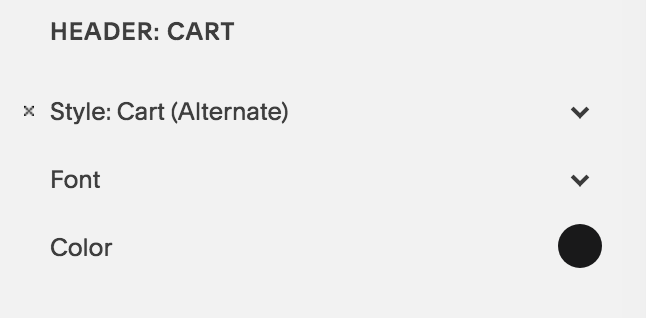
When you select “Cart Alternate”, you can customize these items: color of the cart icon, and the font size + type of the quantity text.

When you select “Bag”, you can change the color of the bag, and the font size + type of the quantity text.

When you select “Bag alternate”, you can change the color of the bag, and the font size + type of the quantity text.

When you select “Text”, you can change the font size and type and the color of font as well.
Show us what you’ve created!
That’s it, my dear friend! It really is as easy as 1-2-3! I love seeing what you create so hop on down to the comments and show me what you’ve created!
Your Brand New Website!
Are you getting excited to get your own website? I love designing websites for fabulous people like yourself, so take action to get your website design process started —> Start the Conversation by sharing some ideas about your site with me and get a free 15 minute video consultation to discuss your website dreams.
Questions about this blog post? You can drop them in the comments below!
~Peace,
Sophia
058: How to Create Double Top Navigation Layout in Squarespace
A double top navigation layout is a great way to separate out your links on the top of your site. This way you can create a visual distinction among your links and space out the links reducing navigation clutter. Watch the video below or follow the steps in the blog to create that look for your site on Squarespace.
How to Create Double Top Navigation Layout in Squarespace
Some links in your top navigation are important but you may not want them to take prime real estate. You may want them to take a secondary position but still stay easily found by your visitors.
How to create such a layout? Enter: the navigation bar above the top navigation.
A double top navigation layout is a great way to separate out your links on the top of your site. This way you can create a visual distinction among your links and space out the links reducing navigation clutter. Watch the video below or follow the steps in the blog to create that look for your site on Squarespace.
1| Go to Design > Site Styles
Hover over the Secondary Navigation to pull up relevant settings. Under Header: Layout, look for “Secondary Nav Position”. Click to choose “Top Left”. This will create its own bar on the top.
2| Primary Nav Position: Bottom Right
Also under Header: Layout, look for “Primary Nav Position”. Select “Bottom Right”.
3| Reduce Padding
Under Header Bottom: reduce the padding to get the right spacing between the new top bar and the Site Title
4| Change color of the White Bar
Click on the white bar. The settings for Header:Top will now show up on in the sidebar panel. Under Background, select the color you want the bar to have.
5| Hit Save 6| Refresh the Page & you are done!

Show us what you’ve created!
That’s it, my dear friends! I hope you will try this layout effect for your site. If you do, I’d love to see it. Drop a link to your page in the comments and share what you’ve created!
Your Brand New Website!
Are you getting excited to get your own website? I love designing websites for fabulous people like yourself, so take action to get your website design process started —> Start the Conversation by sharing some ideas about your site with me and get a free 15 minute video consultation to discuss your website dreams.
Questions about this blog post? You can drop them in the comments below!
~Peace,
Sophia
057: How to Change the Background Color of an Index Section
Are you ready for a little CSS fun? There’s a lot you can do with Squarespace websites and one of them is tweaking the design to create your own customized look - a look away from the templates that Squarespace offers. Today, I am showing you how you can change up the background color of a page or section in your Index collection of pages.
Are you ready for a little CSS fun? There’s a lot you can do with Squarespace websites and one of them is tweaking the design to create your own customized look - a look away from the templates that Squarespace offers. Today, I am showing you how you can change up the background color of a page or section in your Index collection of pages.
Have a look at this super quick video (less than 5 minutes) to see how it is done.
1| Identify the URL Slug of the section
As you will see in the video, the Navigation Title and the URL Slug of your page/section may not be the same. So you first need to collect the URL slug of the page you are targeting.
Notice that I will use the word “page” and “section” interchangeable as both apply in this situation. An Index is a collection of pages. Each page is called a section.
To find the URL slug, click on the wheel icon that is next to the Page you are targeting. Then look for the URL Slug and either copy it or memorize it.
Try and memorize it to train your memory skills - well that’s what I tell myself at least. You can always go back and check if you missed something and you will know that latest when the CSS code doesn’t apply to your section. That’s because the Code never lies! Okay, I am in a funny mood as I prepare this blog (I hope you don’t mind).

2| Go over to Design Panel
Armed with your URL slug, you will jump into your Design Panel. Instead of heading to Site Styles, go all the way to the bottom and click on Custom CSS. That’s where the magic instructions will be placed!
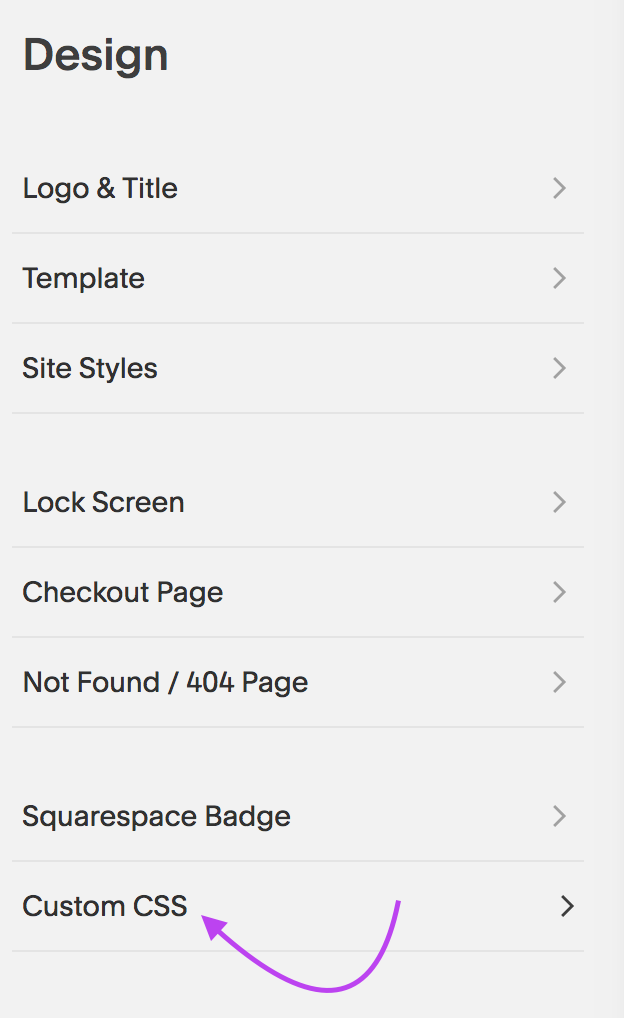
3| Enter the CSS code
Now you are ready to enter the CSS code which should look like this:
#what-clients-say { background: #b8cade;}
Here’s a quick breakdown. Everything after the colon ”:” is what you will be doing. I keep mixing colons : and semi colons ; as you will see in the video. I certainly hope my 8th grade English Teacher doesn’t find out! Hihi!
Enter: #
Next write the URL Slug: what-clients-say
Then open bracket: {
Then write: background
Add a colo: :
Write the hexcode of the color: #b8cade
Add in semi colon: ;
Close bracket: }
Click: Save
Refresh page to see the magic happen!
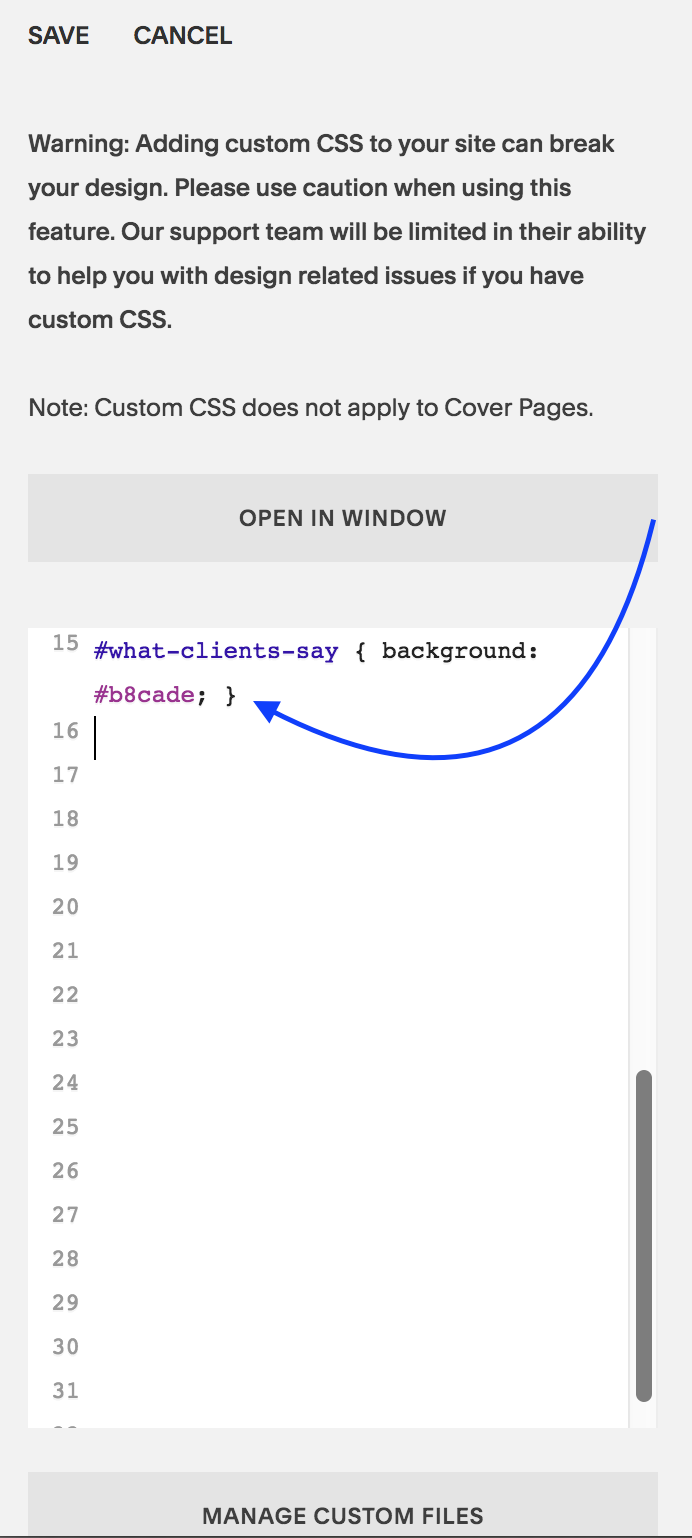
That’s it, my dear friends! I hope this quick fix pikes your interest in Custom CSS as it really is so so cool!
Squarespace always alerts its users that using Custom CSS code could “break” their website. That’s to be on the safe side. So, I too, am alerting you: Using Custom CSS can break your website. Use it only if you know how to employ the code correctly.
Al’right, that’s enough for disclaimers and such.
Show us what you’ve created!
Changed the background of a section of your Index? I want to see! I want to see! Drop a link to your page in the comments and share what you’ve created!
Your Brand New Website!
Are you getting excited to get your own website? I love designing websites for fabulous people like yourself, so take action to get your website design process started —> Start the Conversation by sharing some ideas about your site with me and get a free 15 minute video consultation to discuss your website dreams.
Questions about this blog post? You can drop them in the comments below!
~Peace,
Sophia
056: Squarespace Pricing Comparison: Which plan is right for your business?
Hopefully, you are convinced that Squarespace is the right platform for you and now you want to figure out which plan is right for you. Or may be you are still undecided and understanding the Squarespace pricing plans is the last bit you need to make an informed decision. In either case, this blog article is exactly what you need as I walk you through the different plans and show you how they differ from each other so you can make your decision quickly and easily.
Hopefully, you are convinced that Squarespace is the right platform for you and now you want to figure out which plan is right for you. Or may be you are still undecided and understanding the Squarespace pricing plans is the last bit you need to make an informed decision. In either case, this blog article is exactly what you need as I walk you through the different plans and show you how they differ from each other.
Note: This info is subject to change - so get the latest info on Squarespace pricing from their website.
Squarespace Pricing Plans
Here’s a run down of the 4 pricing plans and tips on how to decide if it’s right for you.
1| 4 Pricing Tiers
As of Feb 6th, 2018, Squarespace has 4 pricing tiers ordered within two categories: Websites and Online Stores.
Under Websites, there are two tiers:
Personal
Business
Under Online Stores, there are two tiers:
Basic
Advanced
It can be confusing how these 4 tiers are classified. So read the points carefully below and you will be able to choose the right one for your business in no time.
2| Each plan builds upon the former.
As you go up in the pricing tier, you get all the features that a lower priced tier includes. It is not always this logical in all business offers where sometimes a higher tier may omit something from a lower one and have something of greater value instead. That’s why it’s worth a mention here.
There’s a pricing hierarchy and so a plan always includes everything from the plan right below it. Personal plan is the lowest priced tier and it goes up all the way to Advanced. This visual makes it easy to see that:

3| Here’s what’s included in each plan
On the Squarespace Pricing page, you will see these 4 plans laid out in detail. I’ve made an at-a-glance visual that shows you all the features
For a larger view of this graphic, click on the image to see the details better.
4| Which plan to choose?
As you go about choosing your plan, the decision on which of the two categories to choose will depend on whether you plan to sell (receive money) on your site. If so, how much do you expect to sell in the first stages of your business. This will directly influence the category and the tier you choose.
Tier 1: Personal Plan (Website)
This is ideal for a solopreneur, artist or a small business or essentially anyone who wants to build a smaller site. This one is also good for those who simply want a online business card, meaning the most important info about their business is presented online without much changing content (although you can make updates anytime). It limits contributor access to 2 people only. (Contributors are anyone who would be accessing the back end of your site).
You can display a photo gallery, set up a blog page and have as many as 1000 pages that are mobile optimized. So for most use cases of a small business, this plan works well. But as soon as you want to sell an item (physical or digital), grow your portfolio of things to sell or collect payment for services rendered, you will need to move up to the next level.
Note: Some bloggers still have posts that say you can sell products on the Personal plan. This is now only possible on what is called a Legacy Personal Plan - the plan you had before Squarespace updated its pricing offers. What you see in this post is up-to-date info as of Feb 6th, 2019 but keep in mind this info can change as Squarespace may change their pricing at anytime. Whenever I make updates on the pricing, I will make a note using an *asterisk.
Pros of the Personal Plan
+ unlimited pages (1000 max)
+ free custom domain 1st year w/annual purchase
+ SSL Security
+ website analytics
+ 2 contributors
+ mobile optimized website
Cons of the Personal Plan:
- cannot sell products/services
- cannot add more than 2 admin contributors
- limited website analytics
Personal Plan Price:
If you purchase it month to month: $16/month
If you purchase an annual plan: $12/month
Total Annual cost: $144 to $192 per year
*Squarespace Authorized Trainers can pass on a 20% discount code to their clients. (I am one of them and my clients and workshop participants benefit from that discount). Plus, remember that you get a free custom domain for the 1st year when you purchase the annual plan - saving you around $20.
Tip: The Personal Website plan of Squarespace is great for small businesses, artists, individuals who want an online presence to showcase their skills, portfolio, writings and service descriptions. Those who want to receive payment for the goods and services online will need to skip this tier and look at the remaining three tiers.

Tier 2: Business Plan (Website)
The Business plan has a bit more of the bells and whistles that will take your business website a long way. You get everything in the Personal Plan and can start selling products, have an integrated business email (GSuite $50/yr), have an announcement bar on top of your site to draw attention to new happenings on your site, and can do third party integrations.
However, you do have a 3% transaction fee for each product/service sold. This is fine if you are only selling a few products a month. But as soon as you are selling boatloads, you will need to consider the next two tiers (e-commerce tiers of Basic and Advanced). On the Basic and Advanced, you will pay a higher monthly amount but will skip the per product transaction fees which is great.
Pros of the Business Plan
+ unlimited pages (1000 max)
+ free custom domain 1st year
+ SSL Security
+ advanced website analytics
+ unlimited contributors
+ mobile optimized website
+ professional email from Google
+ $100 Google Ads Credit
+ promotional pop-ups
+ fully integrated pop-ups
+ unlimited products & accept donations
+ mobile information bar
+ announcement bar
+ premium blocks and integrations
+ CSS and Javascript customization
Cons of the Business Plan
- 3% transaction fee per sale (Not really a ‘con” because this allows you to pay a lower monthly plan fee. Makes sense if the sales start off slow in the first few months. You can upgrade to the next tier anytime).
- doesn’t have the pros of the Basic and Advanced Plans (see below)
Business Plan Price:
If you purchase it month to month: $26/month
If you purchase an annual plan: $18/month
Total Annual cost: $216 to $312 per year*
*Squarespace Authorized Trainers can pass on a 20% discount code to their clients. (I am one of them and my clients benefit from that discount). Plus, remember that you get a free custom domain for the 1st year when you purchase the annual plan - saving you around $20.
3| Tier 3: Basic (Online Store)
This is the tier where no transaction fees comes in. For a few more bucks per month than the Business plan, the Basic plan lets you sell unlimited products/services without a transaction fees added on top of the fees from the payment processor such as Stripe or Paypal. You also get powerful commerce metrics to track your sales and inventory. And other e-commerce related features such as label printing, track inventory, add tax and coupons and sell products on Instagram.
This is a good online store tier for the perfect Goldilocks situation. Not as small as the Business Plan and not as big as the Advanced Plan. Just right! ;)
Pros of the Basic Plan
+ everything from the Business Plan
+ no transaction fees
+ unlimited products
+ mobile optimized website and checkout
+ powerful commerce metrics
+ inventory, orders, tax, coupons
+ label printing via ShipStation
+ integrated accounting via Xero
+ Checkout on your domain
+ customer accounts
+ products on Instagram
Cons of the Basic Plan
- doesn’t have the pros of the Advanced Plan (therefore it is a bit lower in the price).
Basic Plan Price:
If you purchase it month to month: $30/month
If you purchase an annual plan: $26/month
Total Annual cost: $312 to $360 per year*
*Squarespace Authorized Trainers can pass on a 20% discount code to their clients. (I am one of them and my clients benefit from that discount). Plus, remember that you get a free custom domain for the 1st year when you purchase the annual plan - saving you around $20.
4| Tier 4: Advanced (Online Store)
This is a full-fledged online store feature all the bells and whistles that Squarespace has to offer. You have more backend commerce features that make sense when you have a large shop selling a lot of items. You can also add gift cards and offer flexible discounts. And of course, no transaction fees - this really adds up with a large ecommerce shop.
Pros of the Advanced Plan
+ everything from the Basic plan
+ no transaction fees (like in the Basic plan)
+ abandoned cart auto-recovery
+ advanced shipping
+ flexible discounts
+ gift cards
+ orders API
Cons of the Advanced Plan
- a higher pricing tier than Basic (but no transaction fees and more advanced ecommerce management backend.
Advanced Plan Price:
If you purchase it month to month: $46/month
If you purchase an annual plan: $40/month
Total Annual cost: $480 to $552 per year*
*Squarespace Authorized Trainers can pass on a 20% discount code to their clients. (I am one of them and my clients benefit from that discount). Plus, remember that you get a free custom domain for the 1st year when you purchase the annual plan - saving you around $20.
5| Is hosting extra or included?
Website hosting is included with all Squarespace plans. This is great because you save time. You don’t have to shop around for the best hosting offers. And you don’t have to invest time in setting that aspect of your site nor will you have to invest money in a website designer to get that taken care for you.
This saves you anywhere between $5 to $30 or more per month depending on the needs of your business, the bandwith used and offers from the hosting companies. That’s between $60-$360 you save by going with Squarespace because they include hosting in their pricing already. Plus, no extra technical set up is needed.
6| Is a domain name included or extra?
I am super excited about the fact that you can purchase a domain name (your website url eg: sophiaojha.com) directly from inside the Squarespace dashboard. No more domain registration, IP address or nameserver updating! It really is just one click.
That will cost $20 per year for the domain and you can set it on auto-renew that way no need to worry about your domain name expiring and someone grabbing it. (This actually happened to a business owner friend of mine and so this is a real problem. He forgot to renew his domain name by just a day and already someone had purchased it and wanted to sell it back to him for a hefty amount).
+ Plus, you save around $20 for your domain in the first year because when you purchase an annual plan. So your domain name for the first year is free!
+ Also, you don’t have to worry about your domain name expiring because you can have Squarespace auto renew your domain each year automatically. You will just need to set the auto-renewal in the backend correctly (it is just a checkbox).
Tip: If you want multiple domains to point to the same site, for example: you want both sophiaojha.com and Highcountrywebsites.com to go to the same website, then you can do that too with great ease. All you have to do is to select which domain will be primary one.
So there you have it - all the details around the pricing plan on Squarespace. Remember you can always switch from one plan to another at anytime. You will find that a plan above Personal is most suitable for a business that sells products or gets paid for their services online. If you want a digital portfolio or an online resume (with no selling involved) and if you will not be collecting any emails, than a Personal Plan will be perfect for you.
Are you getting excited to get your own website? I love designing websites for fabulous people like yourself, so take action to get your website design process started —> Start the Conversation by sharing some ideas about your site with me.
Questions about Squarespace’s Pricing Tiers? You can always jump over to Squarespace and their excellent customer service team to clarify any of your questions. Plus, you can drop them in the comments below!
~Peace,
Sophia
Mindfulness for solving biz problems
Hello there,
This morning I conducted a live FB chat with my friend Julienne DesJardins for her FB Group Solorpreneur Strategy. We talked about how to use mindfulness to solve business problems and as a result grow your business and impact.
I'm sending out a worksheet with a mindful process and examples of how you can use it in real-life scenarios. If you'd like that, please fill out the form below. You will also be automatically added to my newsletter list from which you can unsubscribe at anytime. So here it is:
Please fill out the form with your contact and some of your current issues that cause emotional distress and mental anxiety or in general make you uncomfortable.
Thank you. If you have specific questions, please add them to the form above as well. I will be emailing you the worksheet in a few hours.
Peace,
Sophia
055: My top navigation links became un-clickable and this is how I solved it
I hope that you never run into the problem that recently rendered my top navigation links of my website un-clickable. It was a glitch that completely took me by surprise and even the Squarespace support could not solve it.
But after looking throughly at how I had things set up, I figured it out and fixed it. And today, I want to share it with you. I want to share it with you so that you can learn from this mishap and even if you never experience this particular problem, you will know how to think about solving your website problems on Squarespace.
How to Troubleshoot Glitches on Your Squarespace Website
I hope that you never run into the problem that recently rendered my top navigation links of my website un-clickable. It was a glitch that completely took me by surprise and even the Squarespace support could not solve it.
But after looking throughly at how I had things set up, I figured it out and fixed it. And today, I want to share it with you. I want to share it with you so that you can learn from this mishap and even if you never experience this particular problem, you will know how to think about solving your website problems on Squarespace.
Watch the video below to see the top navigation acting up and how I fixed it.

The Mysterious Problem: Top navigation links were un-clickable

So a couple weeks ago, I was updating my site with a new blog post and realized that the top navigation pages were functioning in a weird manner. When I hovered over each of them (see video as I recorded how it was acting) it was not clickable. I needed to hover slightly above or slightly below the links and then it would work. The interesting thing was that the secondary navigation page (Workshop in yellow button) was working fine.
I won’t go into the whole process of how I figured it out (the process included confusion, frustration, impatience, slight panic and removing every bit of code I had on my site to find out where the glitch was rooted).
But I must give appreciation to one of my Squarespace Authorized Trainer colleagues who pointed out that the secondary navigation was overlapping the primary navigation pages. He suggested some code to fix it, if all else failed.
I didn’t want to have to use code to fix a problem that shouldn’t have been there in the first place. I want to use code in scenarios where I want to create an effect to add to the visual aesthetic of the site or correct how something looks on mobile. However, the top navigation links should work by themselves!!
Well, I noted my colleague’s point carefully and kept his suggestion in mind as a last resort.
What You See Is What You Get?
To cut to the chase, I found out that my settings in the Site Style panel were affecting how my navigation links were working. It was the Link Spacing under HEADER: SECONDARY NAVIGATION that was at a crazy high number. As soon as I reduced the number down to 42, everything went back to normal!
So, it turns out that when adjusting the Site Style settings, I had played around with the Link Spacing. But I didn’t see any change visually right away and so I simply moved on. I did that because Squarespace is a WYSIWYG website builder. What this means is: What You See Is What You Get and any changes I make from Site Styles panel is usually visible right away. But for some reason, it was not working like that in this case.
This goes to show that What You See Is NOT ALWAYS What You Get!
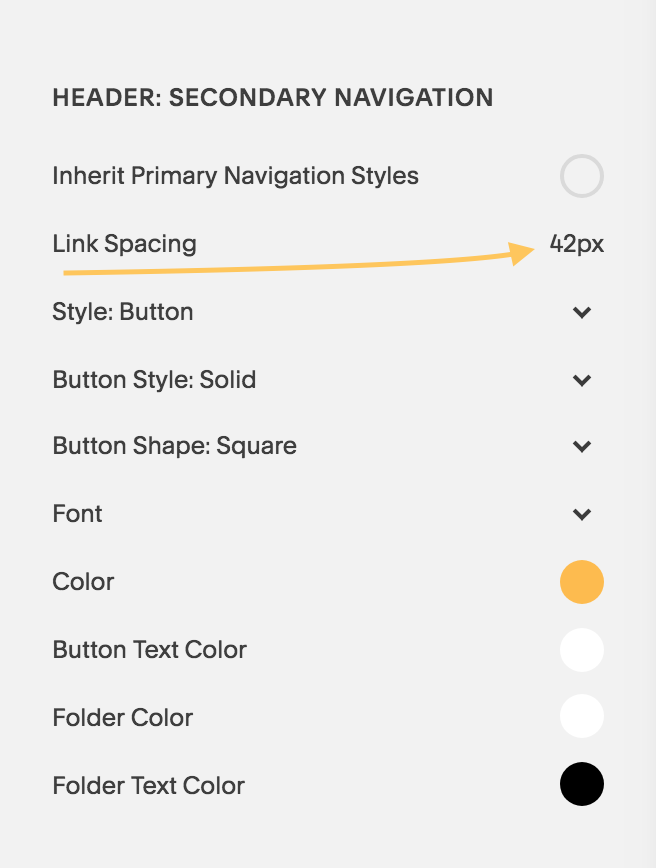
The Solution: Looking carefully at Site Styles Panel
Sometimes, glitches like this can happen. And the remedy is to take a deep breath, go back to your settings and see which element is not showing a change and know that sometimes even when you don’t see a change in your Site Content Area while adjusting things in the Site Styles panel, things are actually happening. (Watch the quick video to see all of this demonstrated).
Well, my friends, I hope that you will take this message with you when designing your website on Squarespace. In the rare case you run into an issue like this, look at the Site Styles panel more carefully.
Let me know in the comments your thoughts on this and if you’ve run into an issue that doesn’t make sense. I’d be happy to have a conversation and guide you in the right direction.
Squarespace is a real fun platform to host your site on. And I love designing websites for fabulous people like yourself, so take action to get your website design process started —> Start the Conversation by sharing some ideas about your site with me.
Remember to drop your comments in the comments section below!
~Peace,
Sophia
054: Ten tools (free) for choosing your website color scheme
Did you know that 90% of an assessment for trying out a product is based on color alone? This data is according to Buffer and it’s one more reason why the color palette of your website holds über-importance.
That’s also one of the toughest decisions for me when building a website. Selecting the right combination of colors that will go on a website is essential for attracting the target audience of my client’s business.
Did you know that 90% of an assessment for trying out a product is based on color alone? This data is according to Buffer and it’s one more reason why the color palette of your website holds über-importance.
That’s also one of the toughest decisions for me when building a website. Selecting the right combination of colors that will go on a website is essential for attracting the target audience of my client’s business.
The color palette should not only reflect the style, voice and values of my client’s business but it should also have a visual aesthetic that is attractive to the audience that my client wants to serve and speak with.
It’s not easy but I want to help to make this part of the website design process easier for you - with my favorite 10 tools.
Whether you are building your website from scratch or even tweaking it to fit a renewed focus or expansion of your business, these 10 tools will be of help. They have helped me at different stages of my web site design creation process. I’ve bookmarked them and they all open up in a new window when I am ready to work on a new website.
Ten tools (free) I use for creating a color palette
or a mood board for my client’s websites
1| Start with some inspiration
This blog on Canva comes in handy when you are just starting to brainstorm. When my clients send me info about their business and a selection of photographs, I already have made notes on the mood, the voice and the style the website should reflect. This blog gets my creative juices flowing as I am very visual and I find that looking at 50 curated websites based on style (ex. fun and professional or modern and clean or enon tones and sharp contrast), is quite helpful.
Blog: https://www.canva.com/learn/website-color-schemes/

Source: Canva.com
2| Play With the Color Wheel
After getting some ideas from Canva’s blog (point 1 of this blog), I jump over to Adobe Color Wheel Tool. First of all, it’s so much fun. But best of all, I can start with one hexcode (one color) and then see several combinations suggested by the tool. I can see Analagous, Monochromatic and so on (see image on the right).
Interactive Tool: https://color.adobe.com/create/color-wheel

3| Get Color Combos from Paletton
Now there’s yet another free tool that I may jump over to play around with my first round of selected colors. This one is also fun and if nothing, you get a nice color therapy just looking at the color wheel ;-)
Interactive Tool: http://paletton.com
Source: http://paletton.com
4| See Your Colors in Action
By now, I have selected my first draft of three or four colors for the website. Now I jump over to design inspiration.net to see how others have used it. Again, I like to see visually what has been done with my color selections to see if the look and feel is right
The cool thing about this tool is that you can plug in several of your colors (hexcode) and see what kind of creative things people have made. You will see everything from posters to photographs - there’s a lot to get inspired by.
Interactive Tool: https://www.designspiration.net/
Source: https://www.designspiration.net/
5| Ooh! Let the Fun Begin With this Color Palette Generator
This by far is my most favorite tool. And if you are a photographer or your site will be very image heavy, this tool might be your very best friend when it comes to selecting colors. Watch the video to see this more precisely but all you do is drop your photo and this generator will spit out 5 colors selected from the photo. I think this one has the most fun-factor, at least for me!
Interactive Tool: https://www.canva.com/color-palette/

Source: Canva.com
Notice that each of these tools and resources serve a different facet of the color palette creation process. One may be for picking hues that complement each other, while another tool will convert your rgb data into a hexcode. So they are all essential in your website building toolbox. Watch the video where I am more specific about these.
6| Change RGB to HEX Code and more
This tool is one of the earliest tools I ran into back in 2014-2015. You will see in your Squarespace backend that there are tons of colors that show up in different color models such as rgba or hsl. This interactive tool is very handy because you can copy that rgb (168,138,212) from the Site Styles panel of your website. Then drop it into the site and color-hex.com will shoot a page out with not only the Hex code (ex: #A88AD4) but also give you a host of other resources - such as hues, tints, analogous colors, triadic colors and so on. So go take a look.
Interactive Tool: https://www.color-hex.com/
Source: Color-Hex.com
7| Use This Tool to Convert a Hex Code
This tool makes it easy to convert a hexcode into different color models such as RGB, HSL and CMYK. This may especially be relevant if you are working with printers and graphic designers.
Interactive Tool: http://www.convertacolor.com/
Source: Convertacolor.com
8| Pick A Color You Like Straight From A Website
This one is a real help. It’s not an interactive tool like the others. Instead it is a Google Chrome extension and once you install it, it sits on your toolbar ready to work with a just a click. When I see a website with a color scheme that I really like, I use my color picker to learn what these are. This is very good for learning from other designers, especially my esteemed colleagues who are also Squarespace Web Designer or Authorized Trainers.
Interactive Tool: http://www.colorzilla.com/

Source: Colorzilla.com
9| Another Fun Tool To Choose Colors for Your Palette
This is a fairly new tool that I have only known for a few weeks now. This tool has two features I like. 1. When you use the “Generate” feature, you can select a color, lock it and then hit spacebar to see other color combinations suggested. 2. You can go to the “Explore” section, plug in the hex code of let’s say the main color in your palette and then the app will show you color palettes that contain that color. I haven’t had used the “Explore” feature much but it’s worth a try.
Interactive Tool: https://coolors.co/
Source: Coolors.co
10| Time To Create The Moodboard
A moodboard is a collection of images, colors and fonts that designers put together for their clients as they begin their website design process. It give a quick snapshot of how the design style that the site will evoke.
If you are building a site for yourself, you may be tempted to skip this step. But there are at least two reasons why this will come in very handy. 1. When you are designing complementary design materials such as a business card, brochure, or social media graphics. 2. When you are working with a graphic designer, marketing team or redesigning your site with a web designer. In both scenarios, having a moodboard handy will help speed up and make thing easier for yourself and whoever you are collaborating with.
ProTip: If you are getting your site designed by a web design professional, make sure to get the moodboard file (PDF, .jpeg or .png) as one of the deliverables from your designer. (This could be during or at the end of the web design creation process - based on the style of your designer).
Interactive Tool: https://www.sophiaojha.com/canva (affiliate link)

Source: Moodboard I created on Canva.com for a recent client. This is a screenshot of my Canva account.
Bonus Tool: ColourCode by Toptal
This is a tool that I had fun checking out as the colors change based on the position of your cursor. It’s by a firm called Toptal and is a completely FREE, web-based color design tool. It’s an all-in-one color design tool where you can find different palette categories (analogic, triad, quad, etc.), multiple conversion colors, and even download your custom palette.
Interactive Tool: https://www.toptal.com/designers/colourcode

Are you getting excited to get your own website? I love designing websites for fabulous people like yourself, so take action to get your website design process started —> Start the Conversation by sharing some ideas about your site with me.
Each week, in my blog, in my free live trainings or in my video tutorials, I show you more things you can do on your Squarespace website without spending an extra dollar. So sign up to my weekly emails that I send out on Thursday mornings so you are always be informed when the next blog/video tutorial or free live training is coming out. Just go on over to —> Squarespace Tips and sign up!
Questions about this blog post? You can drop them in the comments below!
~Peace,
Sophia